
Free Password Generator Online
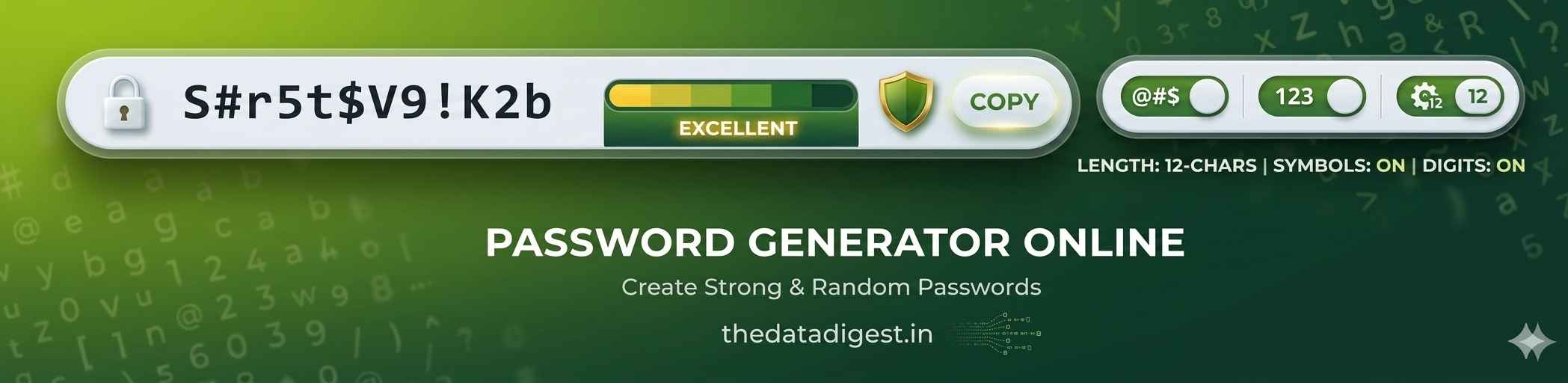
Create strong, random and unique passwords in seconds. Choose the length and character types you need, then copy the result for use with your online accounts.
What Is a Password Generator?
A password generator is a tool designed to create random combinations of letters, numbers and special characters. Instead of thinking of a new password yourself, you can let the generator produce a different combination in seconds.
Long, unique passwords are an important part of good account security. A randomly created password can also avoid common patterns such as names, dates, favourite words or other information that may be easier to guess.
This Data Digest tool lets you choose the password length from 8 to 64 characters. You can also decide whether the result should contain uppercase letters, lowercase letters, numbers and symbols.
💡 For important accounts, use a unique password and consider storing it in a reputable password manager rather than relying on memory.
🔐 Create a Random Password
Select your preferred settings and generate one or several random passwords instantly.
Free • Random • Customisable • Mobile Friendly
Why Use Random Passwords?
Many people reuse familiar passwords across multiple services. Although this may be convenient, it can increase the potential impact of a compromised account. A different password for each important service is generally a better approach.
Randomly generated combinations can also help you avoid predictable patterns. For example, adding a number or symbol to an otherwise familiar word does not necessarily make a password unpredictable.
- Use a different password for important accounts.
- Prefer longer passwords where the service allows them.
- Avoid names, birthdays and easily available personal information.
- Consider using a reputable password manager.
- Enable multi-factor authentication whenever it is available.
Generator Features
Flexible Length
Choose between 8 and 64 characters depending on the requirements of the account or service.
Letter Options
Include uppercase A-Z, lowercase a-z, or both when creating a new combination.
Numbers
Add numbers from 0 to 9 to increase the range of possible characters.
Symbols
Include commonly supported special characters for additional complexity.
Random Generation
Generate a fresh combination whenever you need a new password.
Quick Copy
Copy the generated result to your clipboard with a single click.
Ambiguous Characters
Optionally avoid characters that can be difficult to distinguish, such as O, 0, I and 1.
No Repeated Characters
Use the optional setting when you want each character in the result to be different.
How to Use This Tool
Open the Tool
Click the button above to open the generator in a popup window.
Set the Length
Move the slider to choose a length from 8 to 64 characters.
Choose Characters
Select letters, numbers, symbols and optional character restrictions.
Generate and Copy
Generate a result and use the Copy button to place it on your clipboard.
Password Security Best Practices
A generated password is only one part of account security. How you store and use it also matters. Avoid sharing passwords with other people and do not use the same password across several important accounts.
Use Unique Passwords
Give each important account its own password so that one compromised service does not automatically expose other accounts.
Prefer Longer Passwords
Where supported, longer passwords generally provide a larger combination space than short passwords.
Avoid Personal Details
Do not base passwords on names, birthdays, addresses, phone numbers or other easily discoverable information.
Use Multi-Factor Authentication
When a website offers multi-factor authentication, enabling it can provide an additional layer of protection.
Learn More About Online Security
Password practices are part of a wider approach to online security. For additional guidance, you can consult the following established security resources:
🇬🇧 UK National Cyber Security Centre
The UK National Cyber Security Centre provides practical guidance about passwords, authentication and protecting online accounts.
Visit NCSC Online Security Guidance →🇺🇸 CISA – Cybersecurity Guidance
The US Cybersecurity and Infrastructure Security Agency publishes consumer guidance covering strong passwords, authentication and other security practices.
Visit CISA Secure Our World →🦊 Mozilla – Privacy & Security
Mozilla also provides educational resources covering privacy, security and safer online habits.
Visit Mozilla Privacy Resources →More Data Digest Tools
Frequently Asked Questions
Is this tool free to use?
Yes. The Data Digest tool is free to use and does not require an account or subscription.
What password length can I choose?
You can select a length between 8 and 64 characters using the built-in slider.
Can I include numbers and symbols?
Yes. Numbers and symbols can be enabled or disabled independently, along with uppercase and lowercase letters.
Can I generate several passwords at once?
Yes. The generator can create 1, 3, 5 or 10 results in one session. You can select any result from the list.
Can I copy the result?
Yes. Use the Copy button to copy the selected result to your clipboard.
Does it work on mobile devices?
Yes. The interface is responsive and designed to work on modern smartphones, tablets and desktop browsers.
Should I reuse the same password on different websites?
It is better to use a different password for each important account. A password manager can make it easier to manage unique passwords.
🔐 Create a New Password
Choose your settings and generate a random password in seconds.