
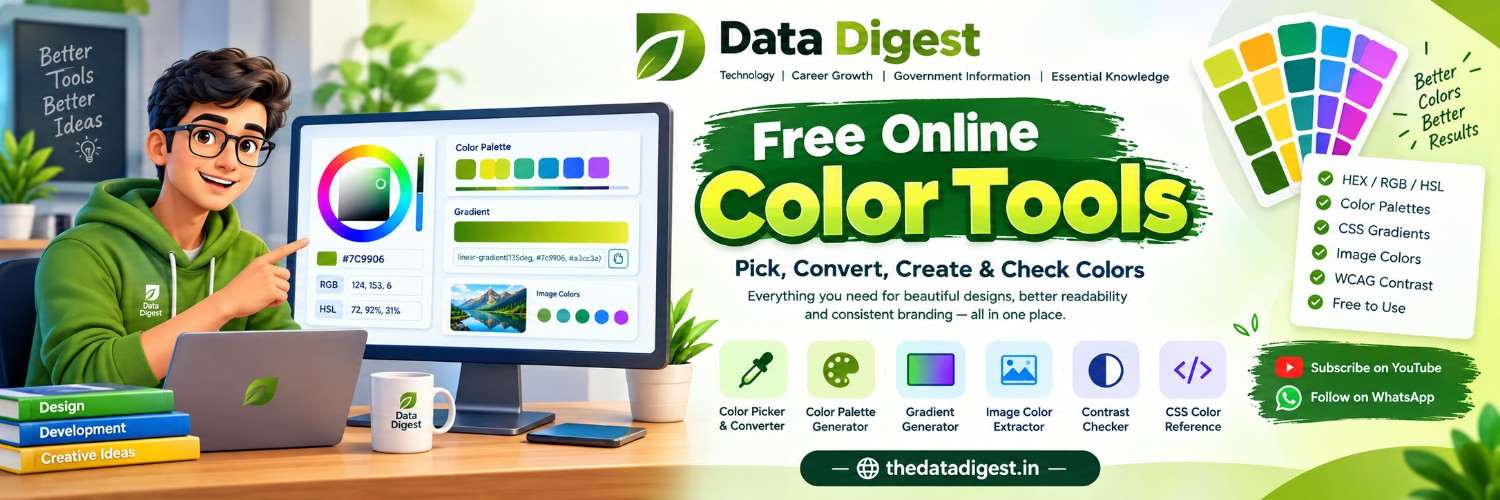
Color Tools Studio: Pick, Convert, Create & Check Colors
Your practical workspace for website colors, CSS gradients, color palettes, image color extraction and accessible text contrast. Explore the tools, copy your results and use them in your next design project.
Your Color Tools Workspace
Choose a tool according to your task. Change a color to see its values, create a coordinated palette, preview a gradient, extract colors from an image or evaluate the readability of text against its background.
Color Picker & Converter
Choose any color and work with three common color formats. Use HEX for many design tools, RGB for screen-based colors and HSL when adjusting hue, saturation or lightness.
Edit a value and leave the field to convert it. HEX supports formats such as #336699 and #369.
Color Palette Generator
Build a set of related colors from one base color. Palettes can help establish consistent backgrounds, buttons, headings, borders and accent colors.
Click a swatch to load it into the main color converter and copy its HEX value.
Choose one primary color, one accent color and neutral shades. Using every palette color equally can make a layout feel cluttered.
CSS Gradient Generator
Create a two-color gradient and copy its CSS declaration for a website section, banner, button or background.
linear-gradient(135deg, #7C9906, #A3CC3A)The generated value can be used with the CSS background property.
Image Color Extractor
Find prominent colors in a picture, illustration or design. This can help you create a palette that matches an existing brand image or website graphic.
Select an image to begin.
Image processing takes place in your browser using this tool’s JavaScript. The code does not upload the selected image to a server.
Use a supported image file under 12 MB. Results are approximate dominant colors, not a professional pixel-by-pixel analysis.
Text Contrast Checker
Check the contrast between foreground text and its background. This is especially useful for navigation menus, article text, buttons, labels and form fields.
Adjust the two colors to instantly test text readability.
Choose colors to check contrast.
WCAG AA generally requires 4.5:1 for normal text and 3:1 for large text. AAA requirements are stricter.
Understanding Color Codes
Digital colors can be represented in several formats. The best format depends on the design application, CSS property or workflow you are using. These are common examples of the same green color.
| Format | Example | What it means |
|---|---|---|
| HEX | #7C9906 | A hexadecimal representation of red, green and blue channel values. |
| RGB | rgb(124, 153, 6) | Three color channels, each commonly ranging from 0 to 255. |
| HSL | hsl(72, 92%, 31%) | Hue, saturation and lightness; useful for creating lighter or darker variations. |
| Named color | tomato | A supported CSS color name, rather than a numeric code. |
| RGBA | rgba(124,153,6,.5) | RGB color with an alpha value representing transparency. |
What is a HEX color?
A HEX color usually begins with # and contains six hexadecimal digits. The first pair represents red, the second green and the third blue. For example, #FF0000 is red and #0000FF is blue.
When should you use RGB?
RGB is useful when a design tool or code requires explicit red, green and blue channel values. CSS also supports modern RGB syntax, including optional alpha transparency.
Why use HSL?
HSL makes it easier to think about a color’s hue, intensity and lightness. It is useful for building hover states, background variations and coordinated themes.
What is color contrast?
Contrast describes the difference in relative luminance between foreground and background colors. Appropriate contrast makes text easier for many people to read.
Practical CSS Color Examples
Use these examples as a starting point for your own projects. Copy the snippets into your stylesheet or a suitable WordPress custom CSS area and adjust the values to fit your design.
1. Change text color
Set a heading or paragraph to a specific HEX color.
h1 { color: #7C9906; }Use the selector that matches your own HTML element.
2. Add a gradient background
Create a smooth transition between two colors.
.hero { background: linear-gradient(135deg, #7C9906, #A3CC3A); }Try the gradient builder above to generate other combinations.
3. Use a reusable brand color
CSS custom properties make color changes easier across a site.
:root { --brand-green: #7C9906; --brand-lime: #A3CC3A; }Reference a variable with var(--brand-green).
4. Add a transparent color
Use an alpha value to create a semi-transparent overlay.
.overlay { background: rgba(124, 153, 6, 0.5); }An alpha value of 0 is fully transparent; 1 is fully opaque.
Color Contrast & Web Accessibility
Color is more than decoration: it can affect readability and how users understand a website. Avoid relying on color alone to communicate important information, such as form errors, status messages or required fields.
| WCAG criterion | Minimum contrast ratio | General use |
|---|---|---|
| AA – Normal text | 4.5:1 | Most regular body text |
| AA – Large text | 3:1 | Large text, typically at least 18 pt regular or 14 pt bold |
| AAA – Normal text | 7:1 | Enhanced contrast for regular text |
| AAA – Large text | 4.5:1 | Enhanced contrast for large text |
These are general WCAG contrast thresholds. This checker evaluates the selected solid text and background colors; it does not assess every accessibility requirement or every visual component.
How to Use These Color Tools
Step 1: Select your color
Open the color picker and choose a color visually, or enter its HEX, RGB or HSL value in the relevant field.
Step 2: Create a matching palette
Choose a base color and palette style. Review the generated swatches and select a color that suits your design.
Step 3: Build a background
Select two gradient colors, adjust the angle and copy the CSS result into your website project.
Step 4: Check readability
Choose text and background colors, review the contrast ratio and make adjustments if the result fails your target.
More Resources for Web Designers
Use trusted documentation to explore advanced CSS color functions, browser support and accessibility standards.
Recommended resources
MDN: CSS color values — learn about color formats supported by CSS.
MDN: CSS gradients — explore gradient syntax and examples.
W3C: Contrast Minimum — understand text contrast requirements.
Explore more free tools at Data Digest — discover other useful online utilities.
Try More Free Online Tools
Continue your creative workflow with these useful browser-based tools from Data Digest.
Frequently Asked Questions
Are these color tools free to use?
Yes. This page is designed to provide free color selection, conversion, palette generation, gradient creation, image color extraction and contrast checking directly in your browser.
What is the difference between HEX, RGB and HSL?
HEX expresses red, green and blue channels in hexadecimal notation. RGB uses numeric red, green and blue values. HSL represents hue, saturation and lightness, which can be more intuitive for creating color variations.
Can I use these color codes in WordPress?
Yes. CSS color values can be used in supported WordPress theme settings, block styling options, custom CSS and website code. The exact location depends on your theme and editor.
How do I choose a good color palette for a website?
Start with one primary brand color, add a complementary or analogous accent if appropriate, and use neutral colors for backgrounds and text. Check contrast and test the palette on both desktop and mobile screens.
Does the contrast checker guarantee full accessibility?
No. It checks the contrast ratio for the selected solid colors against common WCAG text thresholds. Accessibility also involves keyboard navigation, focus indicators, meaningful labels, structure and other requirements.
Are my uploaded images sent to a server?
The image extractor in this code reads the selected image in your browser. It does not contain code to upload the image to a remote server.
Can I copy a generated color into another design tool?
Yes. Copy the HEX, RGB, HSL or gradient CSS value and paste it into a compatible editor or stylesheet. Always check that the destination application supports the chosen format.
Explore More with Data Digest
Discover practical digital tools, technology explainers and useful online resources from Data Digest.